Connect Claude, Codex, Cursor and more.
Give your AI tools the same approved knowledge your team reads, and let them save what they learn. Setup takes about two minutes.
Create a key
In nestedbrain, open Agent access → Create key. Choose the spaces the tool can read and, if you want, where it can save.
Add the server
Point your tool at the nestedbrain URL with the key as a bearer token. Pick your tool below.
Add instructions
Paste a short snippet into CLAUDE.md or AGENTS.md so the tool checks nestedbrain first.
Ask something
Try “How do we deploy a new service?” and watch it answer from your approved pages.
Any tool that supports remote MCP servers connects the same way.
- Before you start
- 1. Create a key
- 2. Add to your tool
- 3. Add instructions
- 4. Verify
- Tools reference
- Scopes
- Example prompts
- Behind the scenes
- Team rollout
- Rotate a key
- Keep it safe
- Troubleshooting
Before you start
You need:
- A nestedbrain account that can create agent keys.
- The address of your nestedbrain server. Everywhere below, replace
YOUR-HOSTwith it. The MCP endpoint is alwayshttps://YOUR-HOST/kbplus-dx/mcp. - An AI tool that supports remote MCP servers (all the tools below do).
1. Create an API key
- Sign in to nestedbrain and open Agent access.
- Choose Create key and give it a clear name, such as “Priya’s laptop · Claude Code”.
- Pick the space the key should read. It can read that space and everything inside it.
- Turn on write only if you want the tool to save memories and propose edits.
- Copy the key. It starts with
ak_live_and is shown once.
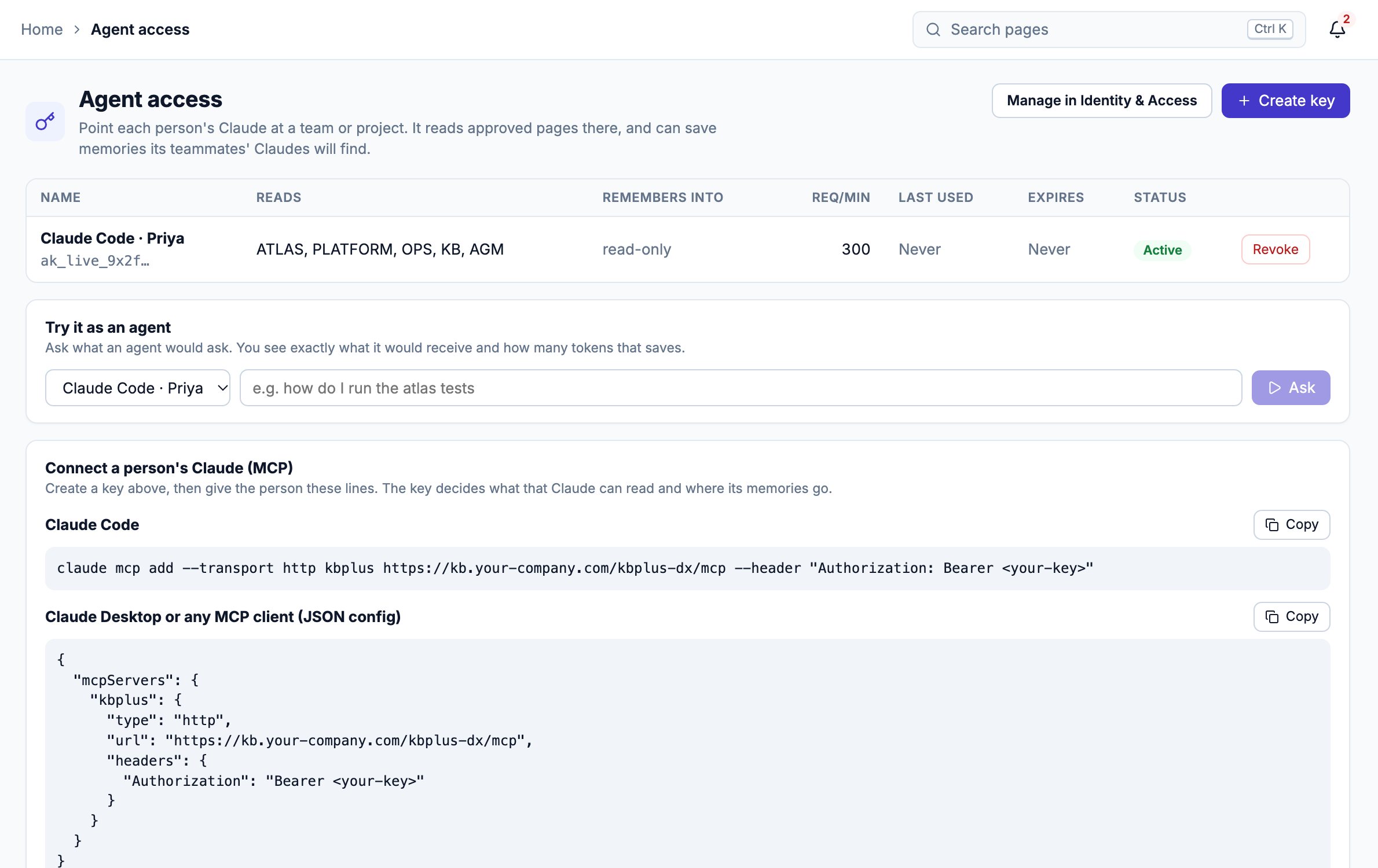
The key is the identity. Its spaces decide what the tool can read and where its memories go, so tools using keys for the same space share what they learn, and everyone else does not see it.
2. Add nestedbrain to your tool
Choose your tool. Replace YOUR-HOST and the example key with your own.
Claude Code
One command adds nestedbrain as a remote (HTTP) MCP server:
claude mcp add --transport http nestedbrain https://YOUR-HOST/kbplus-dx/mcp \
  --header "Authorization: Bearer ak_live_XXXXXXXX"
By default this is saved for the current project only. Add --scope user to use it everywhere, and keep the key in an environment variable instead of typing it:
# make it available in every project on this machine
claude mcp add --transport http --scope user nestedbrain https://YOUR-HOST/kbplus-dx/mcp \
  --header "Authorization: Bearer $NESTEDBRAIN_API_KEY"
Share it with your team
Commit a .mcp.json to the repo. Each person sets NESTEDBRAIN_API_KEY in their own shell, so no key is ever committed:
{
  "mcpServers": {
    "nestedbrain": {
      "type": "http",
      "url": "https://YOUR-HOST/kbplus-dx/mcp",
      "headers": {
        "Authorization": "Bearer ${NESTEDBRAIN_API_KEY}"
      }
    }
  }
}
Check it worked with claude mcp list, or type /mcp inside Claude Code. nestedbrain should show as connected with its tools listed.
Claude Desktop
Claude Desktop’s config file starts local servers, so use the mcp-remote bridge to reach a remote one. It needs Node.js installed.
- Open Settings → Developer → Edit Config to open
claude_desktop_config.json. - Add the server below, then fully quit and reopen Claude Desktop.
{
  "mcpServers": {
    "nestedbrain": {
      "command": "npx",
      "args": [
        "-y", "mcp-remote",
        "https://YOUR-HOST/kbplus-dx/mcp",
        "--header", "Authorization:${NESTEDBRAIN_AUTH}"
      ],
      "env": { "NESTEDBRAIN_AUTH": "Bearer ak_live_XXXXXXXX" }
    }
  }
}env avoids problems with the space in Bearer … on some systems.OpenAI Codex (CLI and IDE extension)
Codex reads MCP servers from ~/.codex/config.toml, shared by the CLI and the IDE extension. First put your key in an environment variable:
export NESTEDBRAIN_API_KEY="ak_live_XXXXXXXX" # add to ~/.zshrc or ~/.bashrcThen add the server to the config file:
[mcp_servers.nestedbrain]
url = "https://YOUR-HOST/kbplus-dx/mcp"
bearer_token_env_var = "NESTEDBRAIN_API_KEY"
Recent Codex versions can also write that entry for you:
codex mcp add nestedbrain --url https://YOUR-HOST/kbplus-dx/mcp --bearer-token-env-var NESTEDBRAIN_API_KEY
codex mcp listcodex --version and the Codex docs for your version.Restart Codex, then ask it: “List the tools you have from nestedbrain.”
Cursor
Create ~/.cursor/mcp.json for all projects, or .cursor/mcp.json inside one project:
{
  "mcpServers": {
    "nestedbrain": {
      "url": "https://YOUR-HOST/kbplus-dx/mcp",
      "headers": {
        "Authorization": "Bearer ${env:NESTEDBRAIN_API_KEY}"
      }
    }
  }
}
Open Settings → MCP to confirm nestedbrain is listed and enabled. To make Cursor use it automatically, add the rules snippet from the instructions section below to .cursor/rules.
VS Code (GitHub Copilot agent mode)
Add .vscode/mcp.json to your workspace. VS Code asks for the key the first time and stores it securely, so it never sits in the file:
{
  "inputs": [
    { "type": "promptString", "id": "nestedbrain-key", "description": "nestedbrain API key", "password": true }
  ],
  "servers": {
    "nestedbrain": {
      "type": "http",
      "url": "https://YOUR-HOST/kbplus-dx/mcp",
      "headers": { "Authorization": "Bearer ${input:nestedbrain-key}" }
    }
  }
}
Open the Chat view, switch to Agent mode and use the tools button to see nestedbrain’s tools.
Windsurf
Open Settings → Cascade → MCP servers → View raw config, or edit the file directly:
{
  "mcpServers": {
    "nestedbrain": {
      "serverUrl": "https://YOUR-HOST/kbplus-dx/mcp",
      "headers": { "Authorization": "Bearer ${env:NESTEDBRAIN_API_KEY}" }
    }
  }
}
Refresh the MCP list in Cascade after saving.
Gemini CLI
Add the server to ~/.gemini/settings.json (or .gemini/settings.json in a project):
{
  "mcpServers": {
    "nestedbrain": {
      "httpUrl": "https://YOUR-HOST/kbplus-dx/mcp",
      "headers": { "Authorization": "Bearer ak_live_XXXXXXXX" }
    }
  }
}
Run /mcp inside Gemini CLI to confirm it is connected.
Any MCP client
nestedbrain speaks standard MCP over streamable HTTP, so any client that supports remote servers with custom headers will work. You need three things:
- URL:
https://YOUR-HOST/kbplus-dx/mcp - Transport: streamable HTTP (sometimes labelled “HTTP” or “remote”)
- Header:
Authorization: Bearer ak_live_…
Clients that only run local (stdio) servers can use the mcp-remote bridge shown on the Claude Desktop tab.
Test from a terminal
This is also the quickest way to check a key before configuring a tool:
export NESTEDBRAIN_API_KEY="ak_live_XXXXXXXX"

# 1. list the tools this key can use
curl -s https://YOUR-HOST/kbplus-dx/mcp \
  -H "Authorization: Bearer $NESTEDBRAIN_API_KEY" \
  -H "Content-Type: application/json" \
  -H "Accept: application/json, text/event-stream" \
  -d '{"jsonrpc":"2.0","id":1,"method":"tools/list"}'

# 2. ask a question
curl -s https://YOUR-HOST/kbplus-dx/mcp \
  -H "Authorization: Bearer $NESTEDBRAIN_API_KEY" \
  -H "Content-Type: application/json" \
  -H "Accept: application/json, text/event-stream" \
  -d '{"jsonrpc":"2.0","id":2,"method":"tools/call","params":{"name":"kb_ask","arguments":{"question":"How do we deploy a new service?"}}}'
The server is stateless, so there is no session to open first. A healthy response to tools/list is a JSON list of tools.
Authorization: Bearer header.3. Tell your tool to use it
MCP tells a tool what nestedbrain can do. A few lines of instructions tell it when. Paste this into your project’s CLAUDE.md, AGENTS.md or Cursor rules:
## Knowledge base (nestedbrain)
nestedbrain is this organisation's shared knowledge base and your long-term memory.
- Before researching or asking me how something works here, call `kb_ask` with the question.
- Read more only when needed: `kb_read_section` for one heading, `kb_read` for a whole page.
- When you learn something durable that a teammate would also need (a decision, a gotcha,
  how a system really behaves, a convention), save it with `kb_remember`.
  One idea per memory, a clear title, plain Markdown.
- Never save credentials, tokens or personal data.
- If a page is wrong or out of date, use `kb_propose_edit`. A person reviews it first.
nestedbrain also sends similar guidance to the tool when it connects, so this step makes the behaviour more reliable rather than replacing anything.
4. Verify it works
- Ask your tool: “What nestedbrain tools do you have?” You should see
kb_ask,kb_search,kb_read_sectionandkb_read, plus the write tools if your key has write access. - Ask a real question: “Use nestedbrain to find how we deploy a new service.”
- If you enabled write, say: “Remember in nestedbrain that our staging database is reset every Sunday.” Then open nestedbrain and find the new memory page.
Tools reference
Read tools are always available. Write tools only appear when the key has a write scope.
| Tool | What it does | Needs |
|---|---|---|
kb_ask | Ask a question. Returns the best matching short briefs, with routes to deeper pages, inside a token budget. Start here. | read |
kb_search | Full-text search over approved pages. Returns titles and snippets, not whole pages. | read |
kb_read_section | Read one heading of a page. The cheapest way to get detail. | read |
kb_read | Read one approved page in full. | read |
kb_remember | Save a durable learning as a memory page. Refused if it contains credentials. | write |
kb_propose_edit | Propose new content for an existing page. A person approves it before others read it. | write |
kb_my_memories | List what this key has saved and whether each is live or awaiting review. | write |
Tools are designed to be cheap. kb_ask returns short summaries first, and kb_read_section fetches only the heading you need, so your tool spends tokens on answers instead of whole pages.
Scopes
Scopes are set when you create the key.
| Scope | Grants |
|---|---|
nestedbrain:read | Required. Lets the key read approved pages it is allowed to see. |
nestedbrain:space:<NODE> | Read the node and everything below it. Add one per space the tool should see. |
nestedbrain:write:<NODE> | Save memories into the node and below, and propose edits. The first write scope is the default target. |
What a connected tool can and cannot do
- Reads approved pages only. Drafts, pages in review, archived pages and restricted pages are never served.
- Saves memories. With a write scope,
kb_remembercreates a memory page. Private memories are visible to that key only, team memories to keys covering the same space, and organisation-wide memories wait for a reviewer. - Proposes, never overwrites.
kb_propose_editsaves a new version that a person approves before anyone else reads it. - Never stores secrets. Text that looks like a credential is refused.
Example prompts
Once connected, you can just talk to your tool. Some prompts that work well:
- “Check nestedbrain for how we deploy a new service, then follow it.”
- “Search nestedbrain for our database connection rules before you write this query.”
- “Read the ‘Rolling back’ section of the release checklist in nestedbrain.”
- “Remember in nestedbrain that the staging database resets every Sunday.”
- “That nestedbrain page on VPN setup looks out of date. Propose an edit with the new steps.”
- “What do we already know in nestedbrain about rate limiting?”
What happens behind the scenes
- Your tool sends a question to nestedbrain using the key.
- nestedbrain checks the key’s scopes and looks only inside the spaces it may read.
- It returns short summaries first, with routes to the page or heading that has more detail.
- Your tool reads only the section it needs, which keeps answers fast and cheap.
- If your tool saves something, nestedbrain checks it for credentials, stores it as a memory page and records which key wrote it.
Roll it out to a team
- One key per person and tool. Name keys clearly, such as “Priya · Codex · laptop”.
- Share the setup, not the key. Commit
.mcp.json(Claude Code) or.cursor/mcp.jsonwith the key coming from an environment variable. - Share the instructions. Put the
CLAUDE.md/AGENTS.mdsnippet in the repo so every tool behaves the same way. - Point each key at the right space. Keys for the same space share what they remember.
- Start read-only. Turn on write access once the team trusts the setup. Saved memories are marked with the key that wrote them.
- Review what gets saved. Organisation-wide memories and proposed edits wait for a reviewer in nestedbrain.
Rotate or revoke a key
- Open Agent access in nestedbrain and create a new key with the same scopes.
- Update the environment variable or config on the machine.
- Revoke the old key. It stops working immediately.
Keep it safe
- Use one key per person and tool, so you can see who did what and revoke one without affecting others.
- Give each key the smallest set of spaces it needs. Add write access only where it helps.
- Keep keys in environment variables or your tool’s secret store, never in a committed file.
- Reads and writes are recorded against the key that made them.
Troubleshooting
| Symptom | Likely cause and fix |
|---|---|
| 401 or 403 | The key is wrong, revoked or expired, or it lacks nestedbrain:read. Create a new key and update your config. Use an agent API key, not your login token. |
| Only four tools appear | The key has no write scope. Create a key with nestedbrain:write:<NODE> if you want the tool to save memories. |
kb_ask returns nothing | The page may not be approved yet, or sits outside the key’s spaces. Try kb_search with different words, and check the key’s scopes. |
| Save refused with 422 | The text looks like a credential (access key, private key, token, password = …). Remove it and save again. |
| Save refused with 413 | The memory is longer than your organisation’s limit. Split it into smaller memories. |
| Tool shows “failed to connect” | Check the URL ends in /kbplus-dx/mcp, that your network allows the host, and run the curl test above. |
| Claude Desktop does not list nestedbrain | Fully quit the app, confirm Node.js is installed (node -v), and check the JSON is valid. |
Still stuck? Ask your nestedbrain administrator to check the key’s scopes in Agent access.
Ready to connect?
Create a key in nestedbrain and be answering from your own knowledge in minutes.